
Live streaming
Streaming with Veo
Add NorCal to your Veo Clubhouse first
You need to be a Team Admin or Team Reporter to use this feature.
To stream live with Veo, you'll need an active Veo Live subscription.
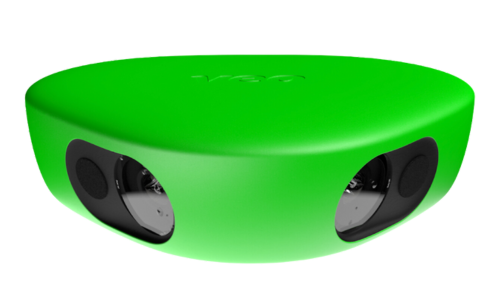
Livestreaming with your Veo Camera and the NorCal App
NorCal supports streaming directly from Veo cameras. This guide walks you through the steps to connect your Veo camera and prepare for a livestream using the NorCal platform.
Quick Tips
- Let the opposing team know you're streaming.
- Be respectful — your comments may be heard live or in replays.
Getting started
Navigate to the game page in the App. Your team's games can be found in the game calendar at the top right of the app's home page, in your home feed, and you can also find the game page via your team's or league's page.
1. Tap the + Button
Opens the reporting options menu from the game page.
2. Tap "Plan Livestream"
Opens the livestream setup screen.
3. Select Veo Camera
Creates a scheduled livestream card that appears at the top of the game feed and shows the countdown to kickoff.
4. Tap "Next" to Continue
Moves you forward to the external broadcast setup.
External Broadcast Options
This page lets you manage your broadcast options.
- Access the Stream Settings page to find your stream URL and key
- Preview the stream before going live
- Set when the stream becomes publicly available before kickoff
- Publish the stream for viewers when an incoming stream is detected and publish time has not passed
You can optionally check out the Stream and publishing settings, but this is more common to do on game day when you are about to go live with the Veo camera.
15. Tap the Back Arrow
Return to the game feed.
16. View the Planned Livestream Card
The card now appears at the top of the game feed and shows the countdown to the match.
On game day
17. Navigate to the Game Page
On game day, open the game page in NorCal.
18. Tap Admin: Handle and Start Livestream
Opens the Handle and Start Livestream screen.
19. Open Stream Settings
Tap to access and copy your stream key and stream name.
20. Copy the Stream Key
Tap to copy your stream key to the clipboard.
21. Check Overlay Settings
Confirm these match your encoder settings:
- If your stream includes its own scoreboard, enable the setting to hide the NorCal scoreboard
- Set the delay or latency to match your encoder (41 seconds for Veo)
22. Start the Veo Camera App
In the Veo Camera app, tap Go Live and enter the match details including field size and opponent.
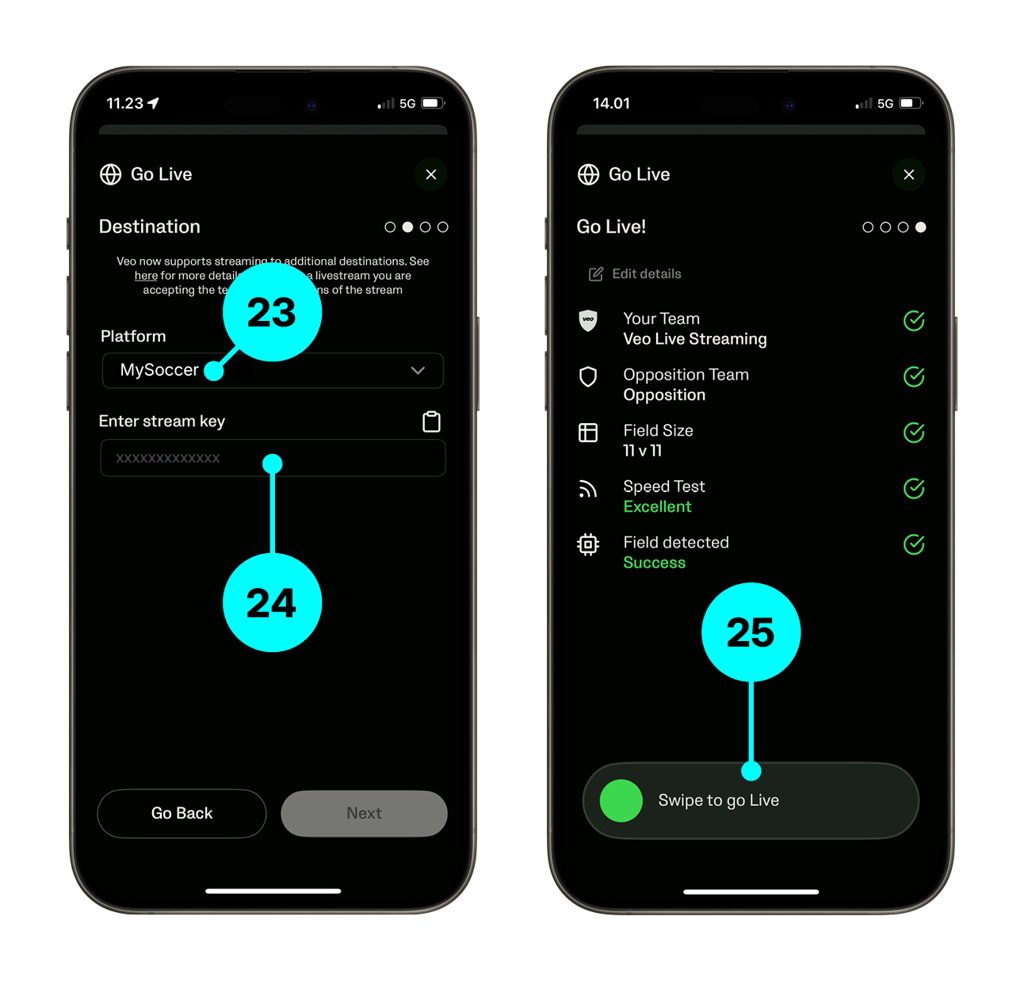
23. Select NorCal in the Platform Menu
On the Destination page, select NorCal as your platform.
24. Enter Stream Key
Paste the stream key using the paste icon next to the field.
25. Swipe to Start the Livestream
The stream begins. There is about a 1-minute delay before it appears in NorCal.
- If started within 10 minutes of kickoff, it will be publicly available immediately
26. Switch back into NorCal
You'll be back on the Stream Settings page.
27. Tap the Back Arrow
Return to the External Broadcast Options page.
28. Check the Preview
It's a good idea to check the preview at this point and make sure everything looks correct before the stream becomes publicly available.
29. Tap the Back Arrow Again
Return to the External Broadcast Options page.
30. Ready to Start
You're all set. You can:
- Wait for the scheduled publish time, or
- Publish the stream immediately by pressing the red button
When the Match Ends
After the final whistle:
- Wait about 1 minute before stopping the stream in the Veo Camera app.
- The stream ends automatically when the camera stops transmitting.
- No need to finish anything in NorCal — the replay is instantly available.