
Live streaming
Streaming with NorCal
You need to be a Team Admin or Team Reporter to use this feature.
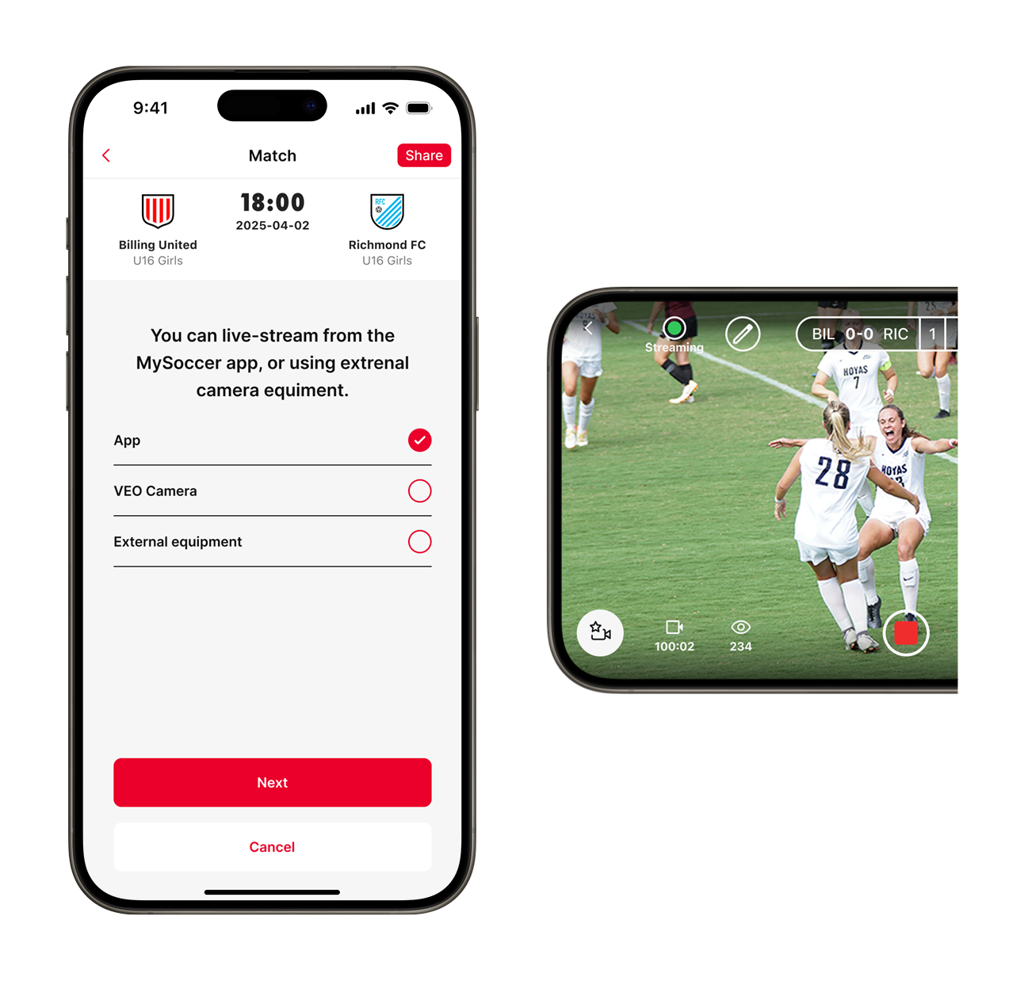
Livestreaming with your phone and NorCal
This guide shows you how to livestream a game using your phone and NorCal.
Quick Tips
- Let the opposing team know you're streaming.
- Bring a power bank — livestreaming drains battery fast.
- Use a tripod for a stable video.
- Be respectful — your comments may be heard live or in replays.
Getting started
Navigate to the game page in the app. Your team's games can be found in the game calendar at the top right of the app's home page, in your home feed, or via your team's or league's page.
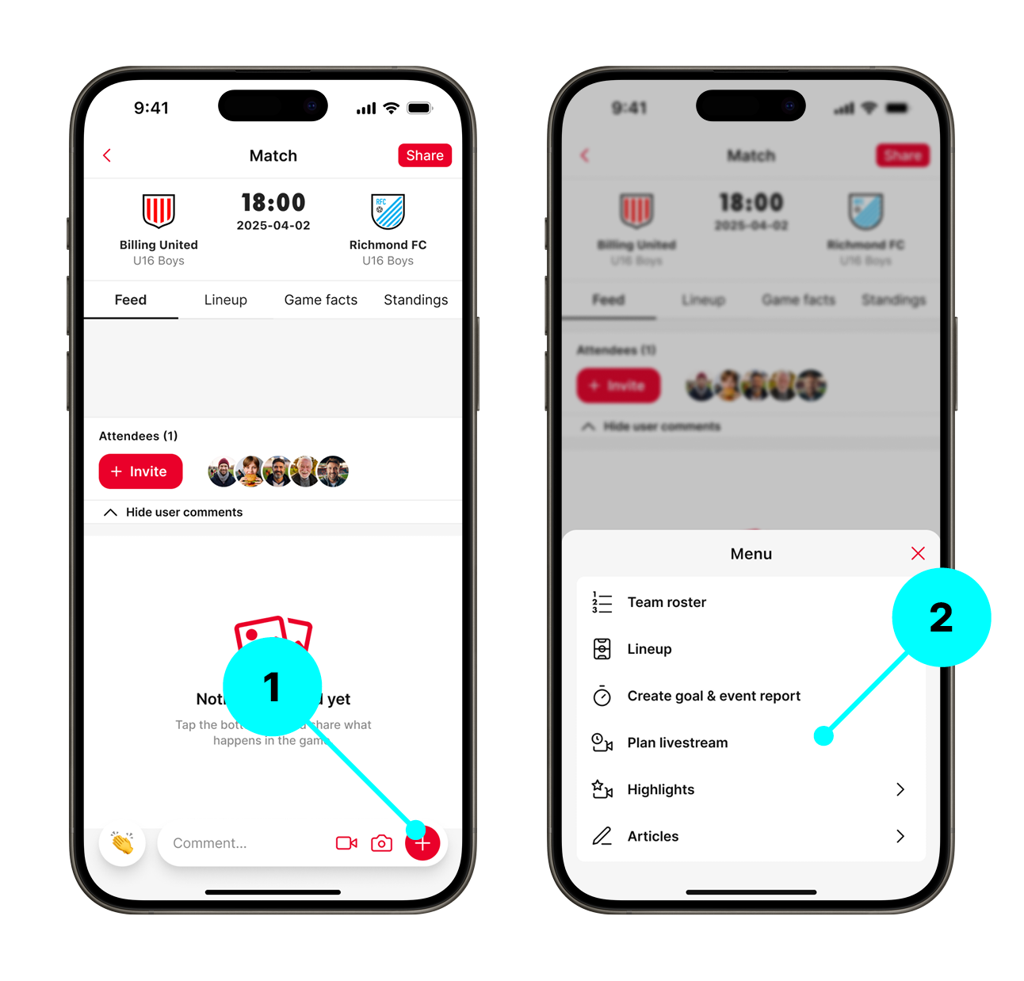
1. Tap the + Button
Opens the reporting options menu from the game page.
2. Tap "Plan Livestream"
Opens the livestream setup screen.
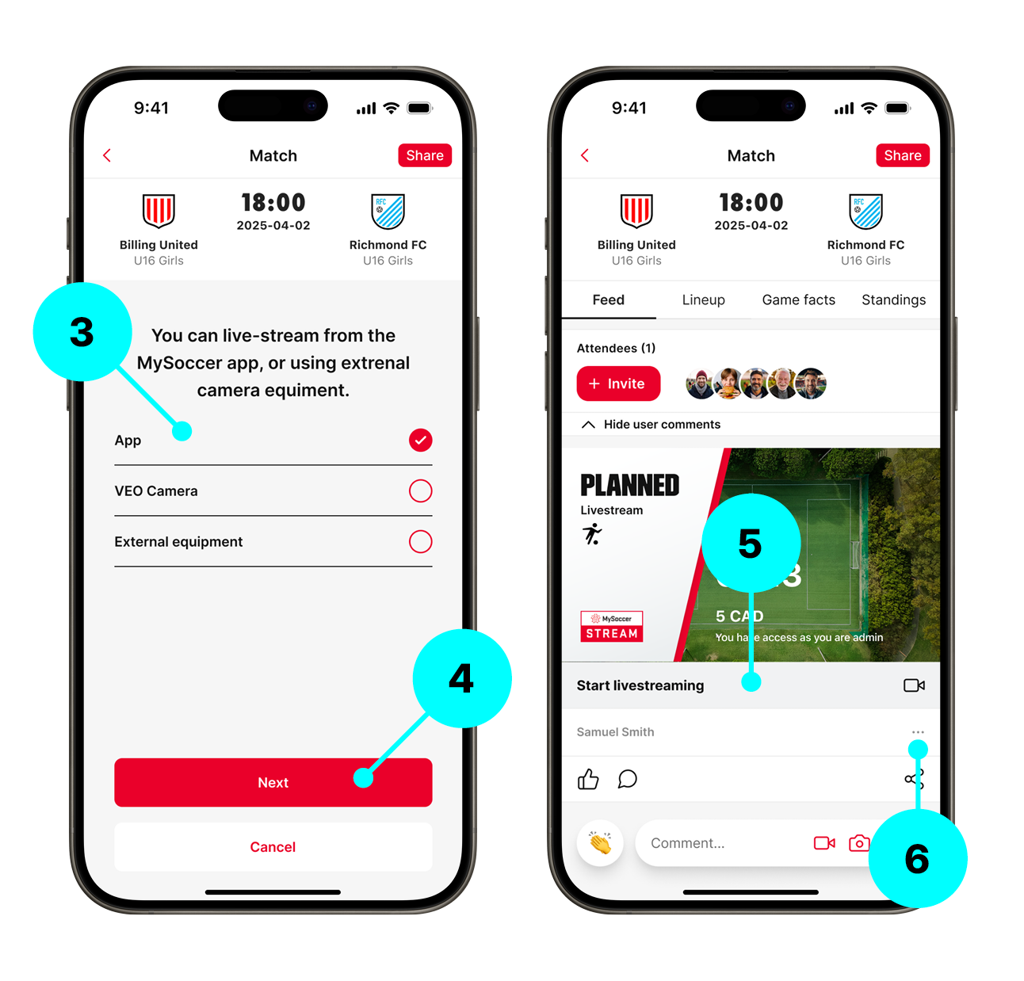
3. Tap the App Option
Selects the option to stream using the app and your phone.
4. Tap "Save"
Returns you to the game feed. A planned livestream card will now appear in the match feed.
5. Tap "Start Livestreaming"
Begins the connection checks — this does not start the livestream yet.
6. Edit or delete the planned stream (Optional)
Make changes by tapping the three-dots more menu icon.
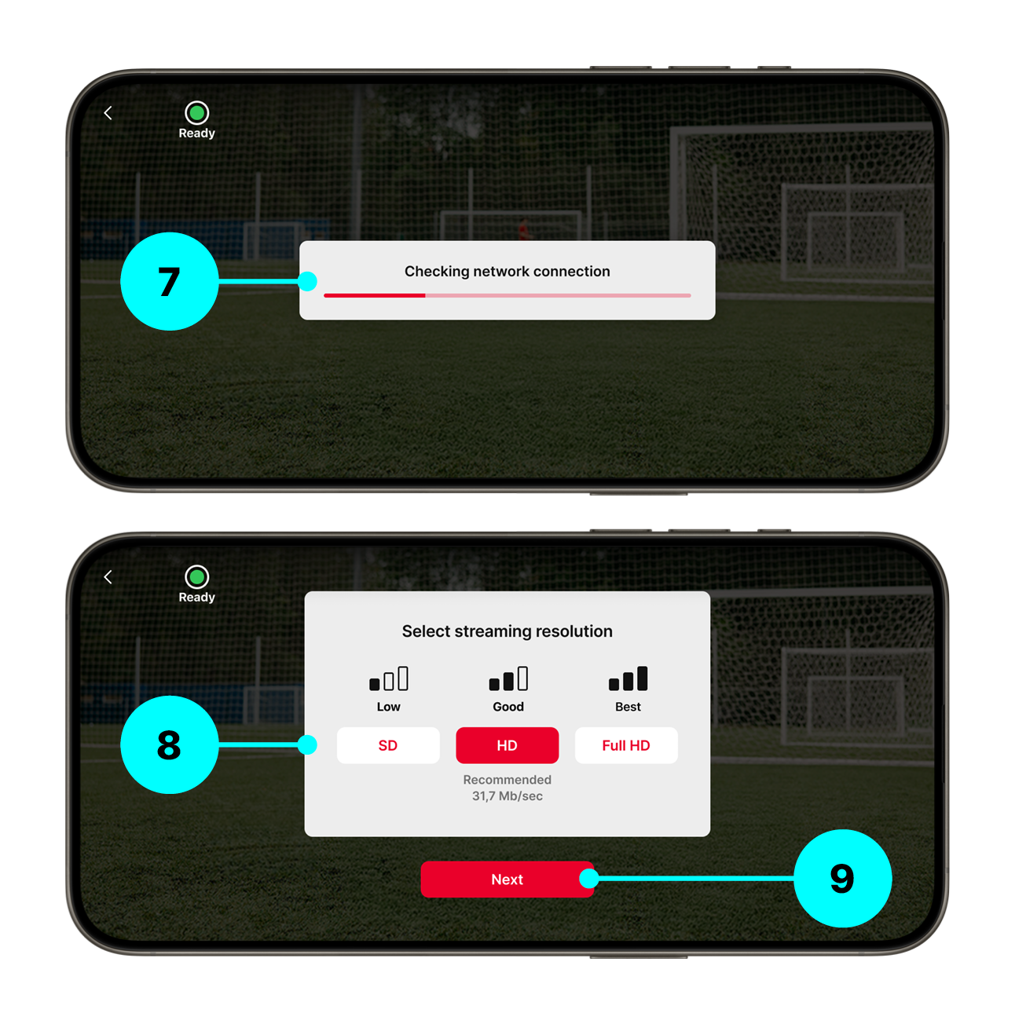
7. Checking Network Connection
The app checks your current connection to ensure streaming is possible.
8. Select Streaming Resolution
NorCal suggests the best resolution based on your network. You can select another resolution if preferred.
9. Tap "Next"
Continues to the livestream preview screen.
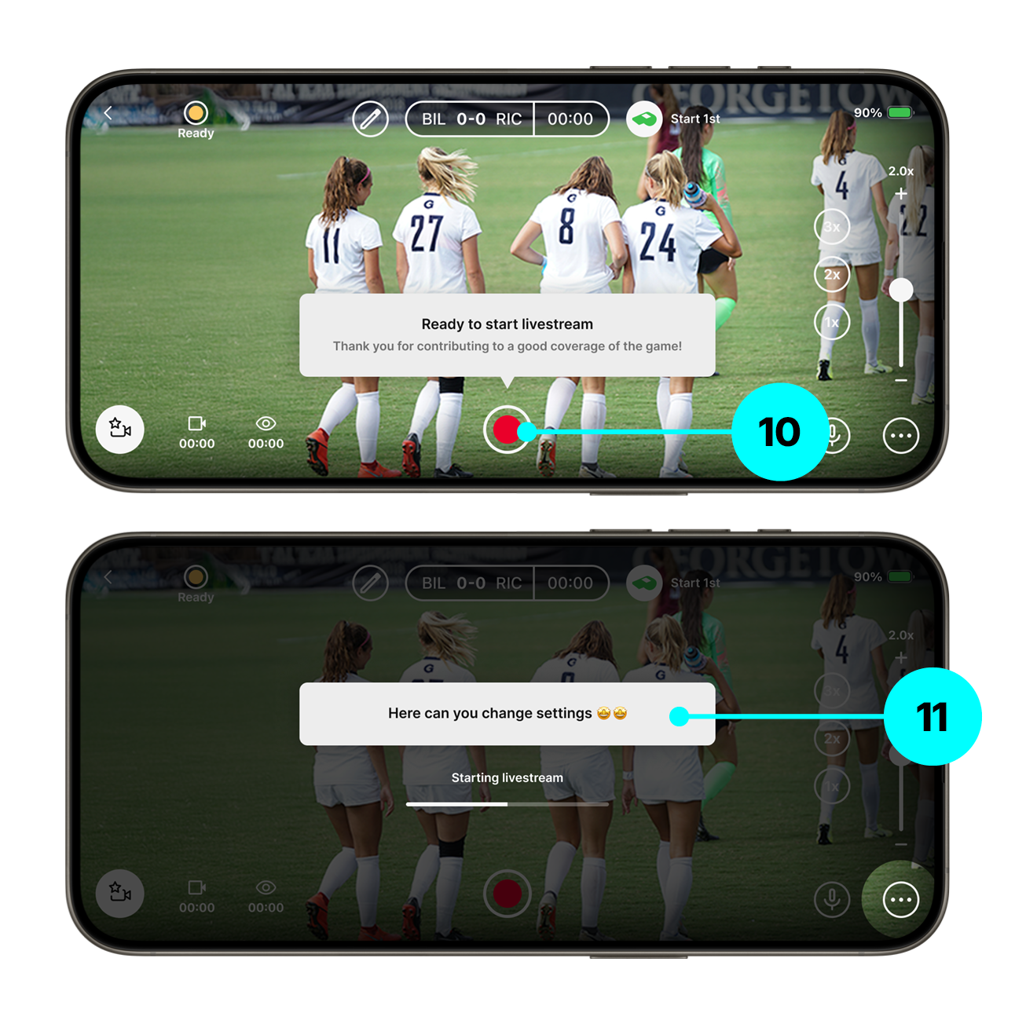
10. Start Livestreaming
Once the connection and resolution are set, you're ready to begin. Press the red button to start livestreaming.
11. Starting the Livestream
This usually takes about 6 seconds. A small tip will appear each time to help improve your stream experience.
The app live streaming view
The live streaming view is designed to show as much of the stream window as possible while keeping useful controls within easy reach.
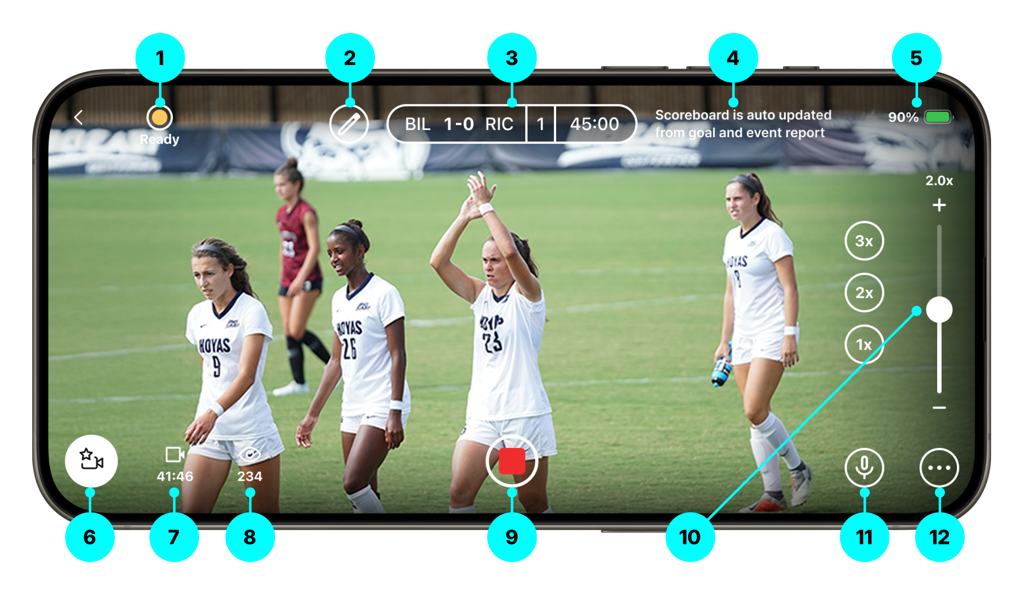
- Livestream Status — Displays the current status: Ready, Error, or Streaming.
- Edit Scoreboard — Tap to manually edit the scoreboard when no Goal and Event Report is used. Also allows take-over control of the scoreboard if a Goal and Event Report is active.
- Scoreboard — Auto-updates from the Goal and Event Report if one is active.
- Goal and Event Report Active — Displays a message confirming that a Goal and Event Report is active.
- Battery Indicator — Shows your current battery level. Live streaming a full match can drain your phone, so bring a power bank or charger.
- Highlights Button — Tap to mark highlights during the stream. Clips appear in the game feed within minutes. A video of all highlights is created after the stream. View the Highlights Guide for more.
- Camera Rolling Duration — Shows how long the camera has been recording. This is not linked to match time.
- Number of Viewers — Displays the current number of live viewers.
- Start/Stop Recording — Tap to begin or end your livestream.
- Zoom Controls — Use the slider for precise zooming or tap preset levels (1×, 2×, 3×) for instant zooming.
- Microphone On/Off — Tap to mute or unmute the microphone during the stream.
- Open/Close Settings — Tap to adjust live stream settings: show or hide streaming stats, flip the camera, switch between autofocus and continuous focus, and show or hide zoom controls.
Streaming with a Live Goal and Event Report
If another user is handling live goal and event reporting, your scoreboard and match clock will update automatically from their actions.
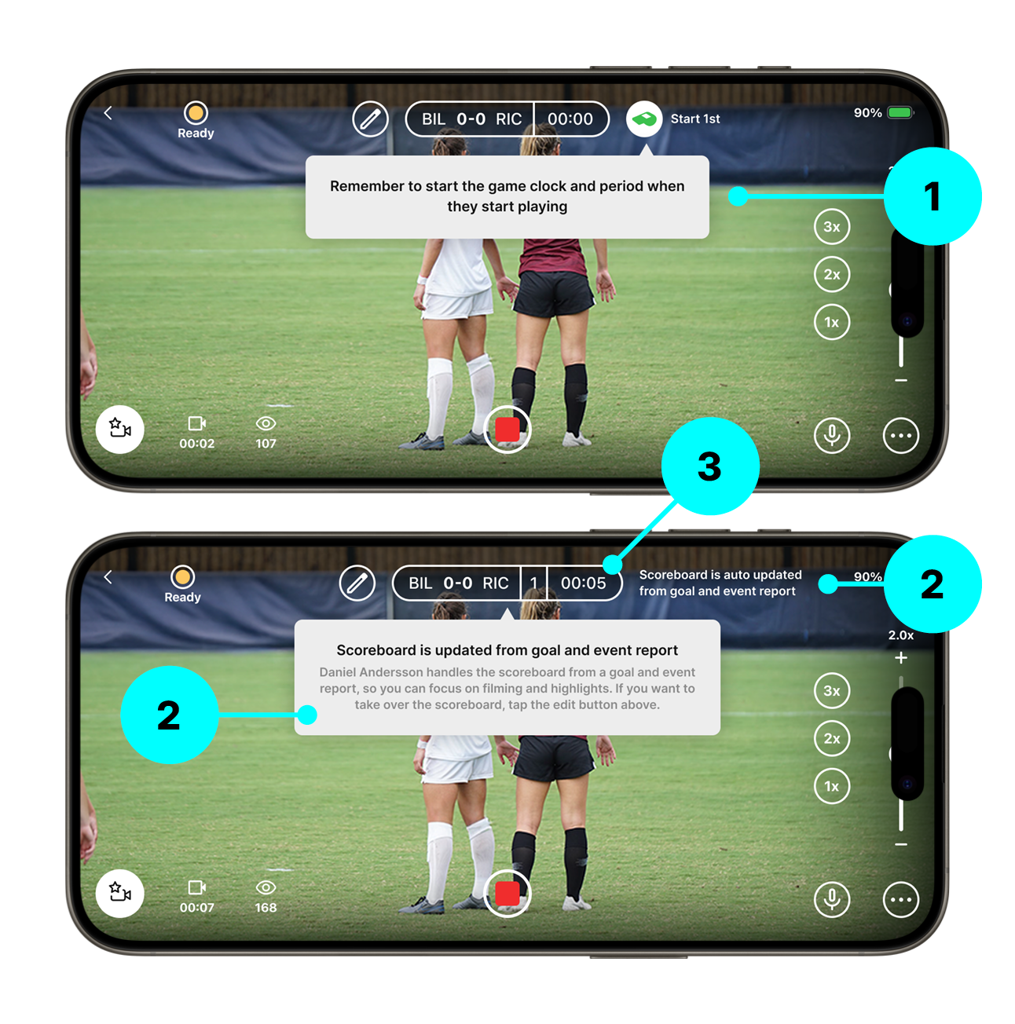
1. Waiting for Reporting to Begin
If you start the livestream before the match and event report has started, you will see this notification. This is normal and will update once reporting begins.
2. Match Reporting Begins
You'll receive an on-screen notification when goal and event reporting starts. Control of the scoreboard and clock is now handled by the reporter.
3. Match Clock Starts Automatically
The match clock begins when the reporter starts the first half.
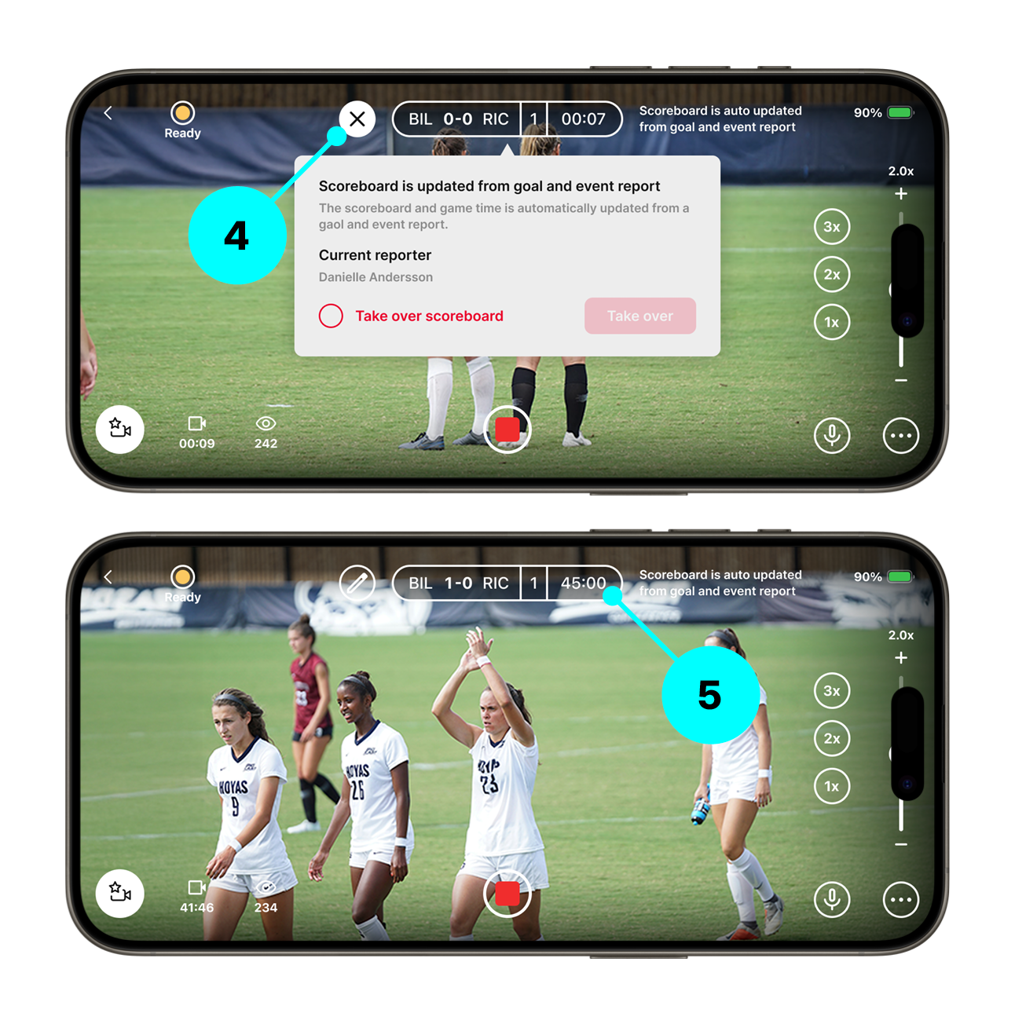
4. Take Over the Scoreboard (Optional)
If needed, you can take over the scoreboard and clock. You'll then be responsible for goals and timing manually.
5. First Half Ends Automatically
As long as you didn't take over the scoreboard, the clock pauses automatically when the reporter ends the first half.
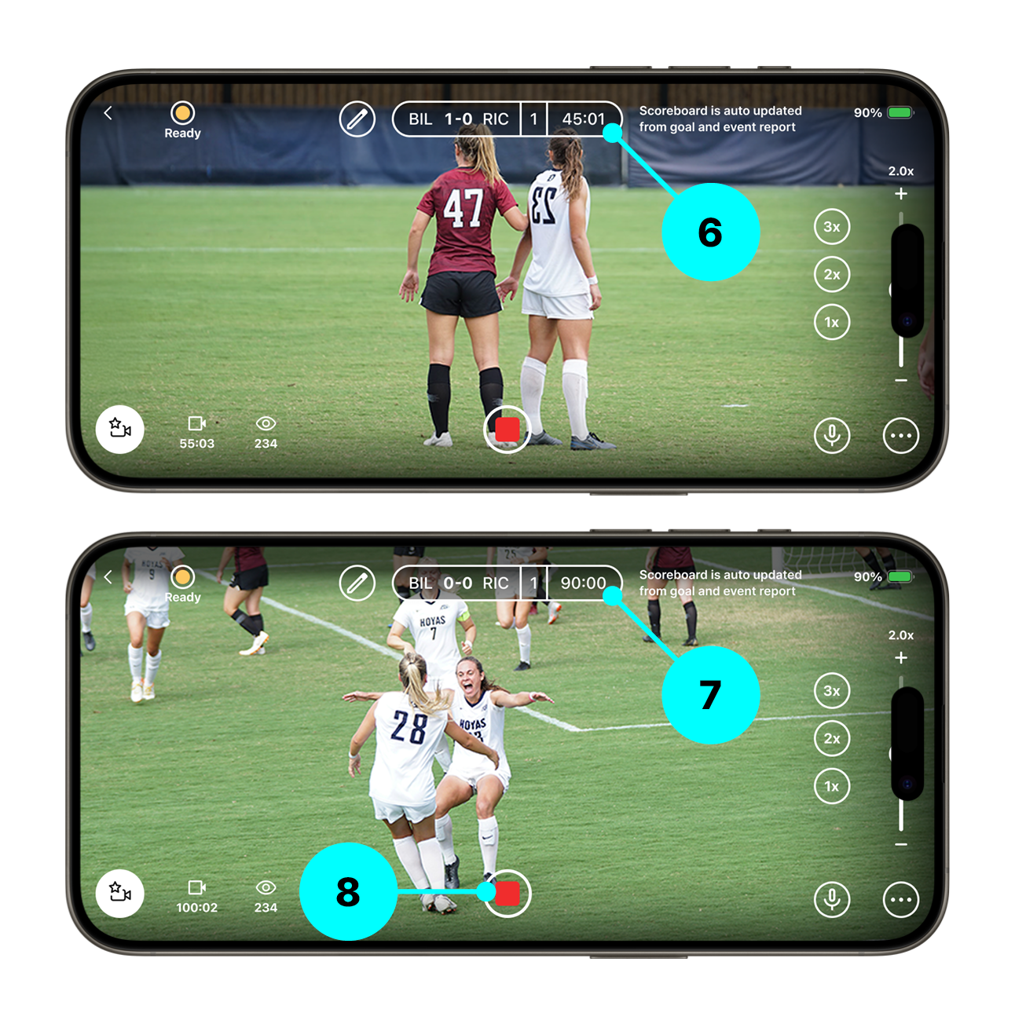
6. Period Start
The match clock will automatically start when the goal and event reporter starts the second half.
7. Final Whistle
The match clock will automatically stop when the goal and event reporter ends the match.
8. Tap the Stop Streaming button
When the match reporter has ended the match and the clock has stopped, tap the stop streaming button to end the stream.
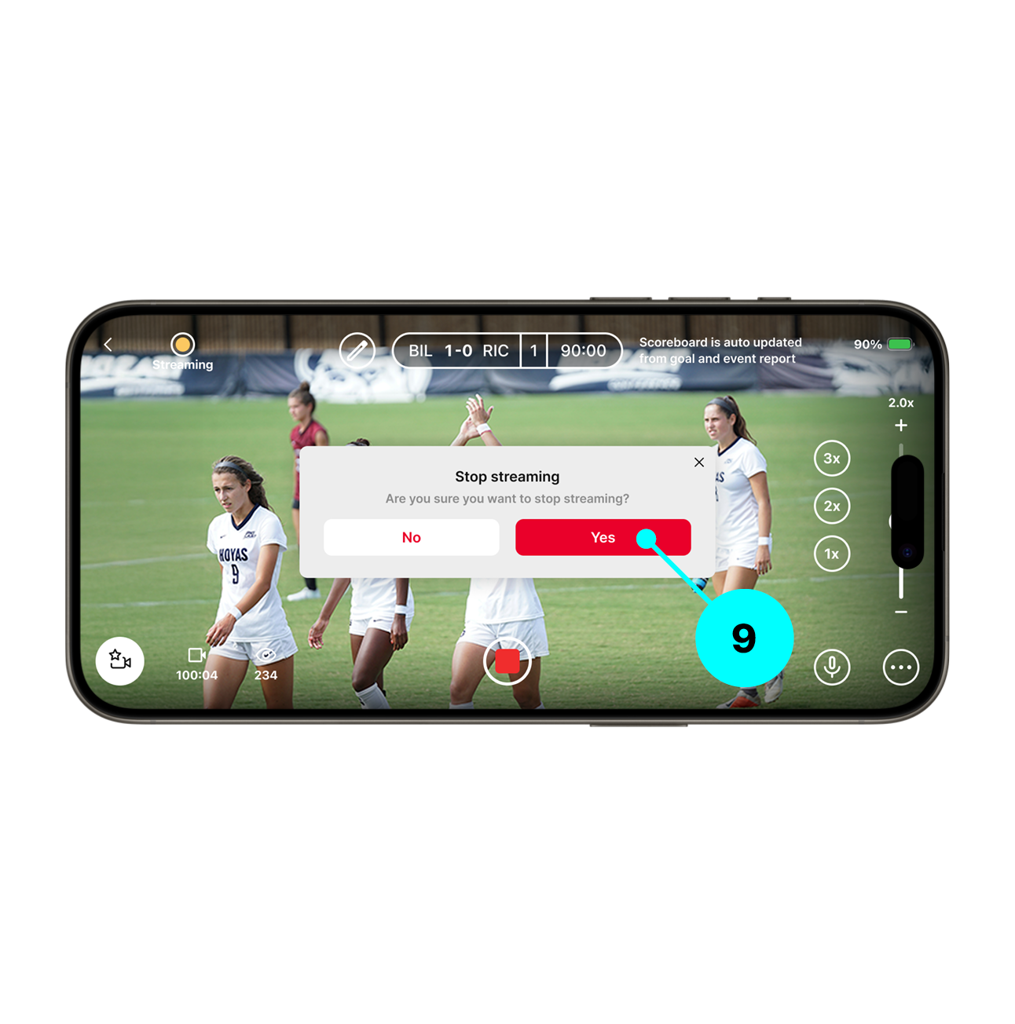
9. Confirm Stop Streaming
Tap to confirm and end the livestream.
Streaming without a Live Goal and Event Report
If no other user is handling live goal and event reporting, you can manage the timing and score updates directly from the streaming view. Don't worry — it's quick and simple.
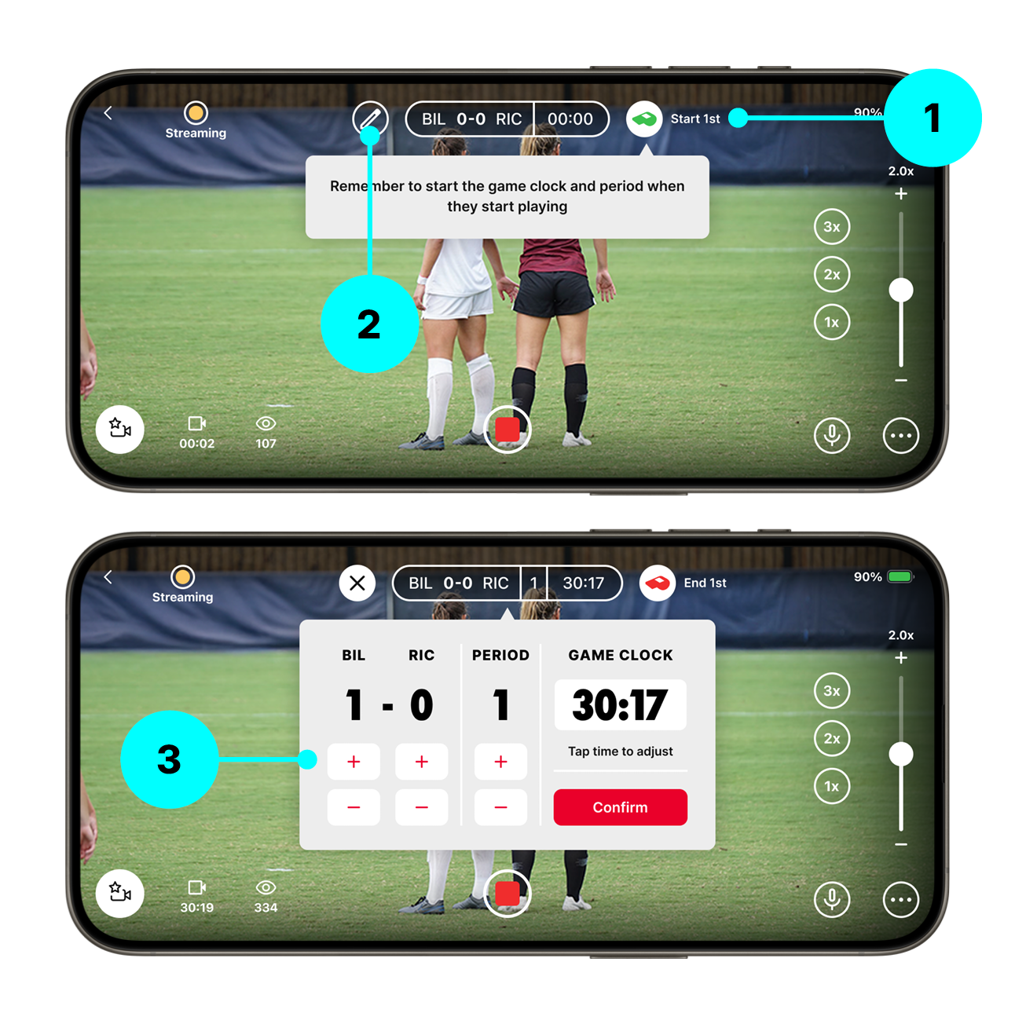
1. Start the Match Clock
Tap to begin the match clock at kickoff.
2. Open or Close the Scoreboard
Tap the scoreboard icon to toggle its visibility during the stream.
3. Add Goals
Tap to update the score. If you are tagging highlights in the streaming view, goal highlights automatically add a goal to the score.
4. End First Half
Pauses the match clock at the end of the first period.
5. Start Second Half
Restart the clock when the second half begins.
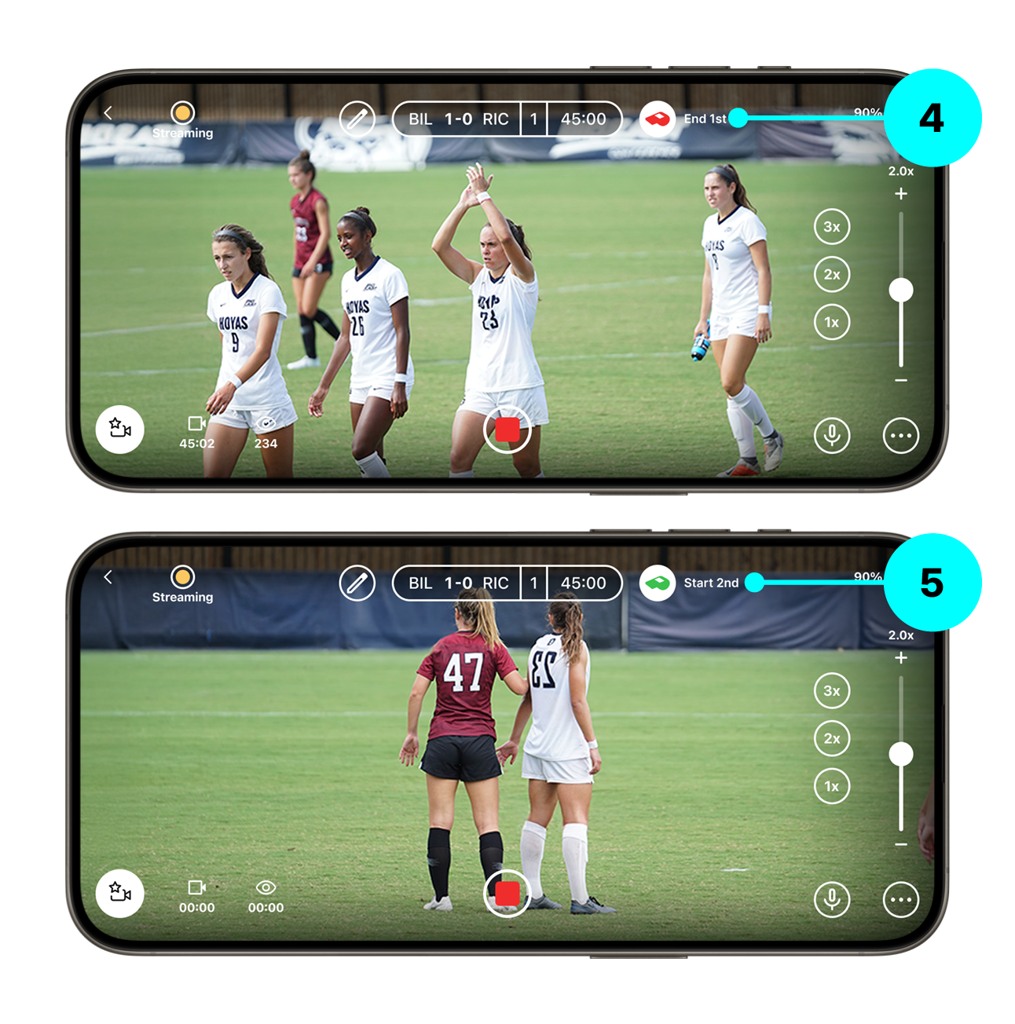
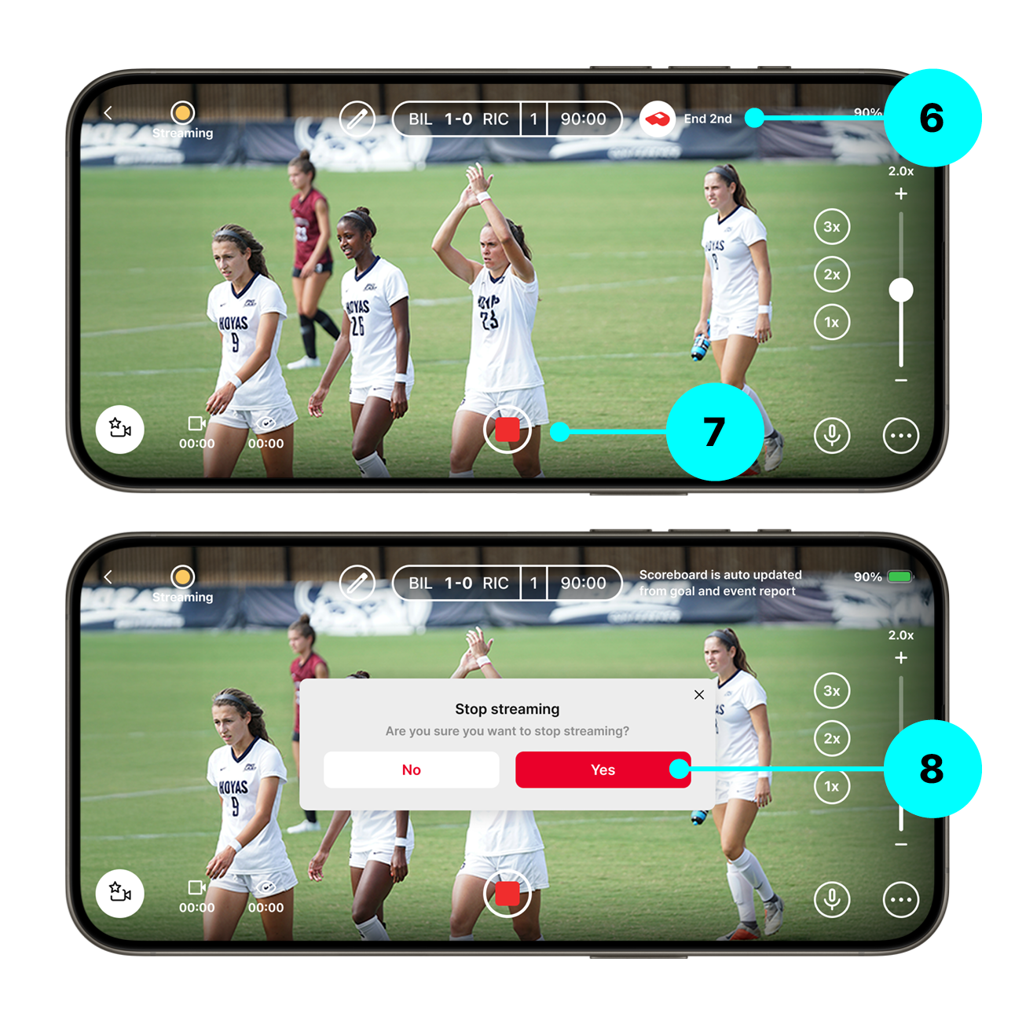
6. End the Match
Tap the full-time icon to end the second half.
7. Tap "Stop Streaming"
Opens the confirmation screen to end the livestream.
8. Confirm Stop
Tap to confirm and end the livestream.