
Live streaming
Creating and Editing Highlights
Highlights can be created when someone streams from the NorCal app and taps the highlight button inside the streaming view, or using the Create Live Highlights menu option when there is a Livestream from a Veo or other external camera equipment.
When a highlight is tagged, a video clip is created that starts 10 seconds before the button was pressed and ends 5 seconds after the button was pressed.
The highlight clip will appear in the game feed within 20 seconds. At the end of the live stream a highlight video is automatically created that contains all the highlight clips from that stream.
Creating Highlights
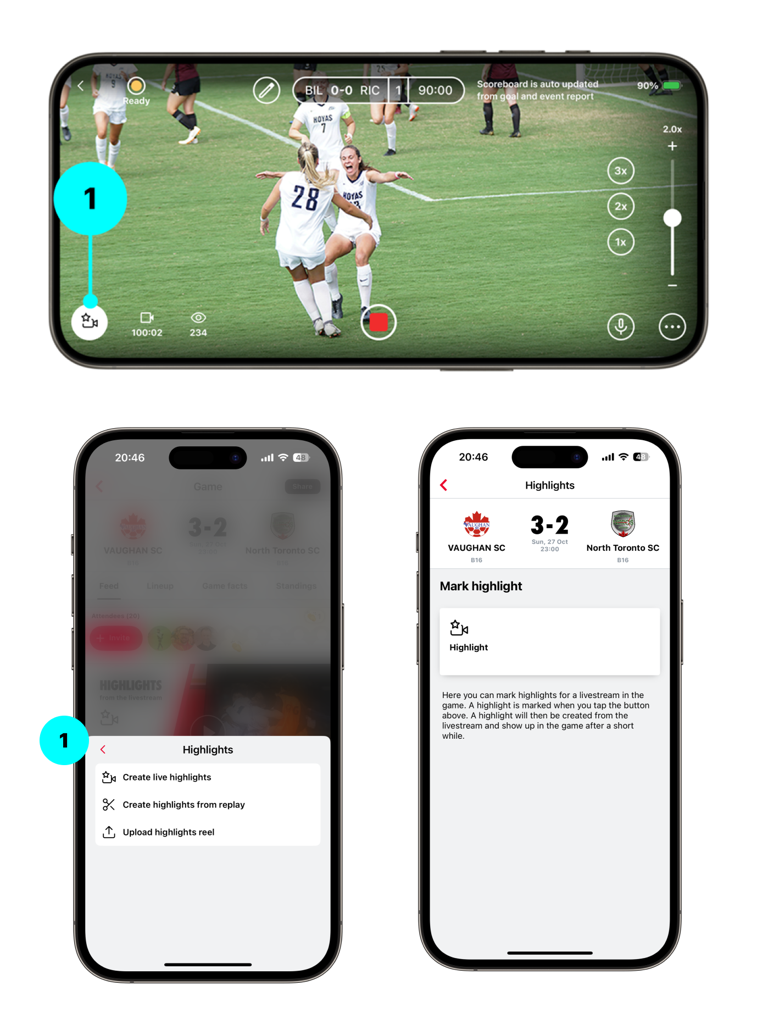
1a. Tap the Highlight Button (In-App Streaming)
During filming, the streamer can tap the highlight button after an event on the pitch, like a goal or a chance. This creates a clip that starts a short while before and ends a short while after the button was pressed.
1b. Use Create Live Highlights (Veo / External Camera)
Press the + menu button at the bottom of the game page, select Highlights in the menu, and then press Create Live Highlights.
When there is a goal or chance, press the Highlight button, choose the type of highlight, and select the team who got the goal or had the chance.
2. Automatic Goal and Event Connection
If a goal is scored and the Goal and Event Reporter reports it around the same time as the highlight tap, the highlight clip is automatically linked to that goal event in the feed. The clip appears above the event card, as shown here.
3. Unconnected Highlight
If there is no Goal and Event Reporter active, or they did not report an event close to that moment, the clip appears as a standalone Highlight in the feed. You can connect it to a match event afterward by tapping the more menu on the highlight card.
Editing a Highlight
1. Tap the More Menu
Tap the three-dot menu icon on the event card to open the options menu. This lets you edit both the video highlight and the match event.
2. Tap "Edit Highlight"
Opens the highlight editor where you can trim the clip. From this menu you can also:
- Disconnect the highlight from a game event
- Download it
- Report it
- Delete it
3. Open the Highlight Video
Tap the highlight card in the game feed to open the video player. The Highlights tab is selected by default. If there is also a full-match replay available, you can switch between them using the tab bar.
3. Drag the Left and Right Handles
Adjust when the highlight starts and ends by dragging the left and right handles on the timeline. Use the video controls to preview your clip.
4. Tap "Change Time"
Select this option if you want to pick a completely different section of the full replay to use as your highlight.
5. Tap "Done"
Saves your changes and returns you to the match feed with the updated highlight applied.