
Live streaming
Stream View
The live stream view is designed to show as much of the stream window as possible while keeping useful controls within easy reach.
Stream View controls
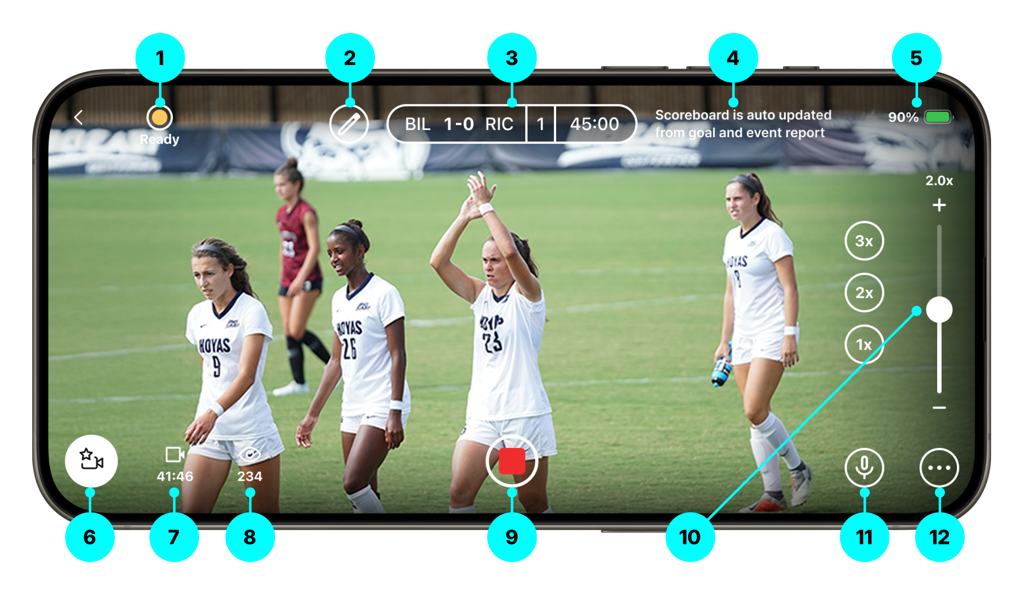
1. Livestream Status
Displays the current status: Ready, Error, or Streaming.
2. Edit Scoreboard
Tap to manually edit the scoreboard when no Goal and Event Report is used. Also allows take-over control of the scoreboard if a Goal and Event Report is active.
3. Scoreboard
Auto-updates from the Goal and Event Report if one is active.
4. Goal and Event Report Active
Displays a message confirming that a Goal and Event Report is active.
5. Battery Indicator
Shows your current battery level. Live streaming a full match can drain your phone, so bring a power bank or charger.
6. Highlights Button
Tap to mark highlights during the stream. Clips appear in the game feed within minutes. A video of all highlights is created after the stream. View the Highlights Guide for more.
7. Camera Rolling Duration
Shows how long the camera has been recording. This is not linked to match time.
8. Number of Viewers
Displays the current number of live viewers.
9. Start/Stop Recording
Tap to begin or end your livestream.
10. Zoom Controls
Use the slider for precise zooming or tap preset levels (1x, 2x, 3x) for instant zooming.
11. Microphone On/Off
Tap to mute or unmute the microphone during the stream.
12. Open/Close Settings
Tap to adjust live stream settings:
- Show or hide streaming stats
- Flip the camera
- Switch between autofocus and continuous focus
- Show or hide zoom controls